Before you install
Start with an active WooCommerce installation. BundleTiers requires WordPress 6.5 or later, WooCommerce 8.5 or later and PHP 7.4 or later. Back up your store and use a staging copy to check your theme, prices and extensions before enabling offers for customers.
Choose a simple product for your first offer. A product with a straightforward unit price makes it easier to verify the total, savings and cart behaviour.
Install and activate BundleTiers
- Download the BundleTiers 1.0.0 installation ZIP.
- In WordPress, open Plugins Add New Plugin Upload Plugin.
- Select the ZIP, choose Install Now, then activate BundleTiers.
- Confirm that WooCommerce is active. The plugin’s settings are available inside WooCommerce.
Configure global quantity tiers
Open WooCommerce Settings BundleTiers. Set the default quantities and choose a discount type and value for each tier. You can add descriptive labels, a badge and a default selection.
| Quantity | Discount | Example label |
|---|---|---|
| 1 | 0% | 1 item |
| 2 | 10% | Save 10% |
| 3 | 20% | Save 20% |
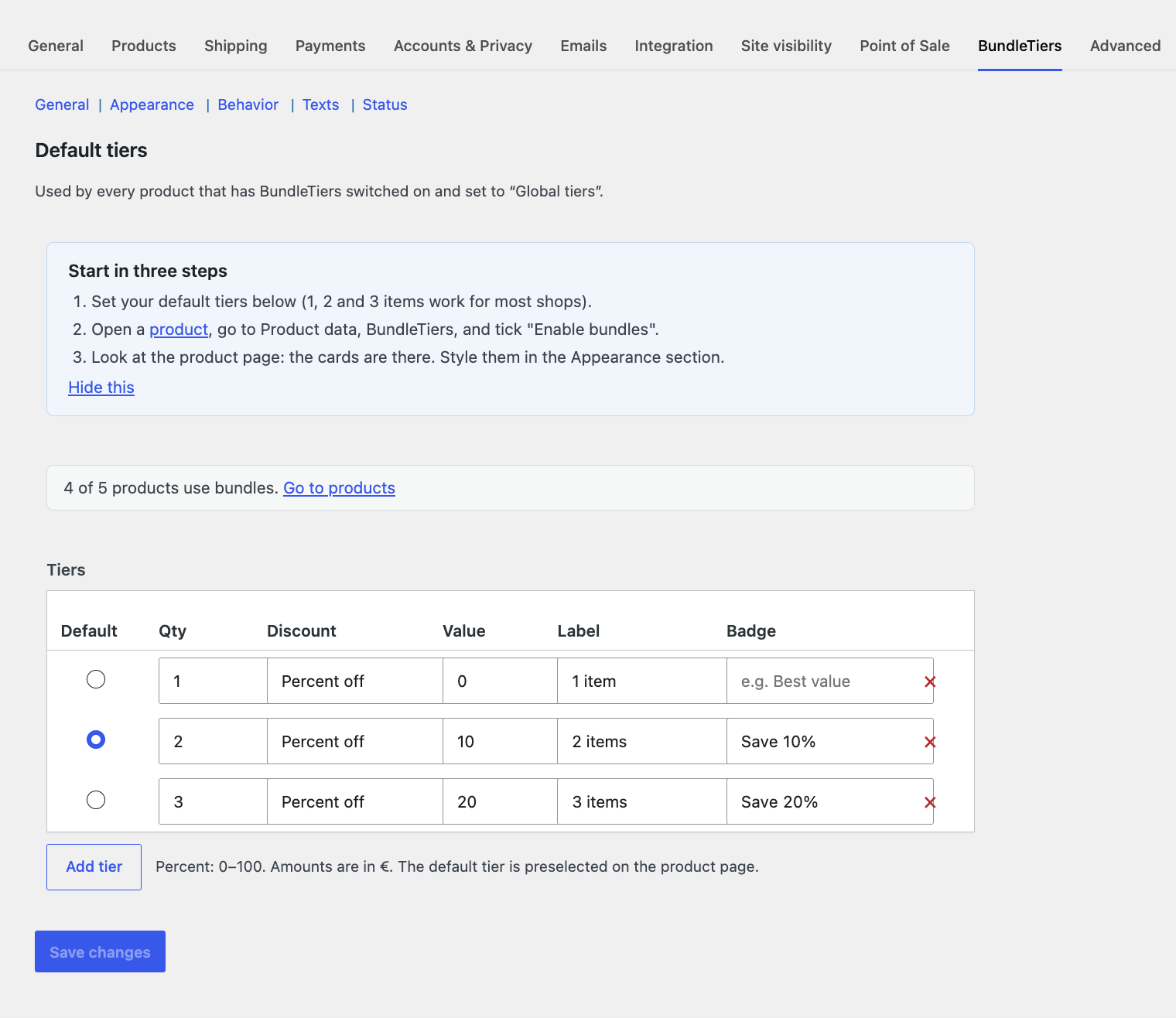
Configure the selector’s colours, border and corners, then save your changes. For a €24 product, these tiers produce totals of €24.00, €43.20 and €57.60.
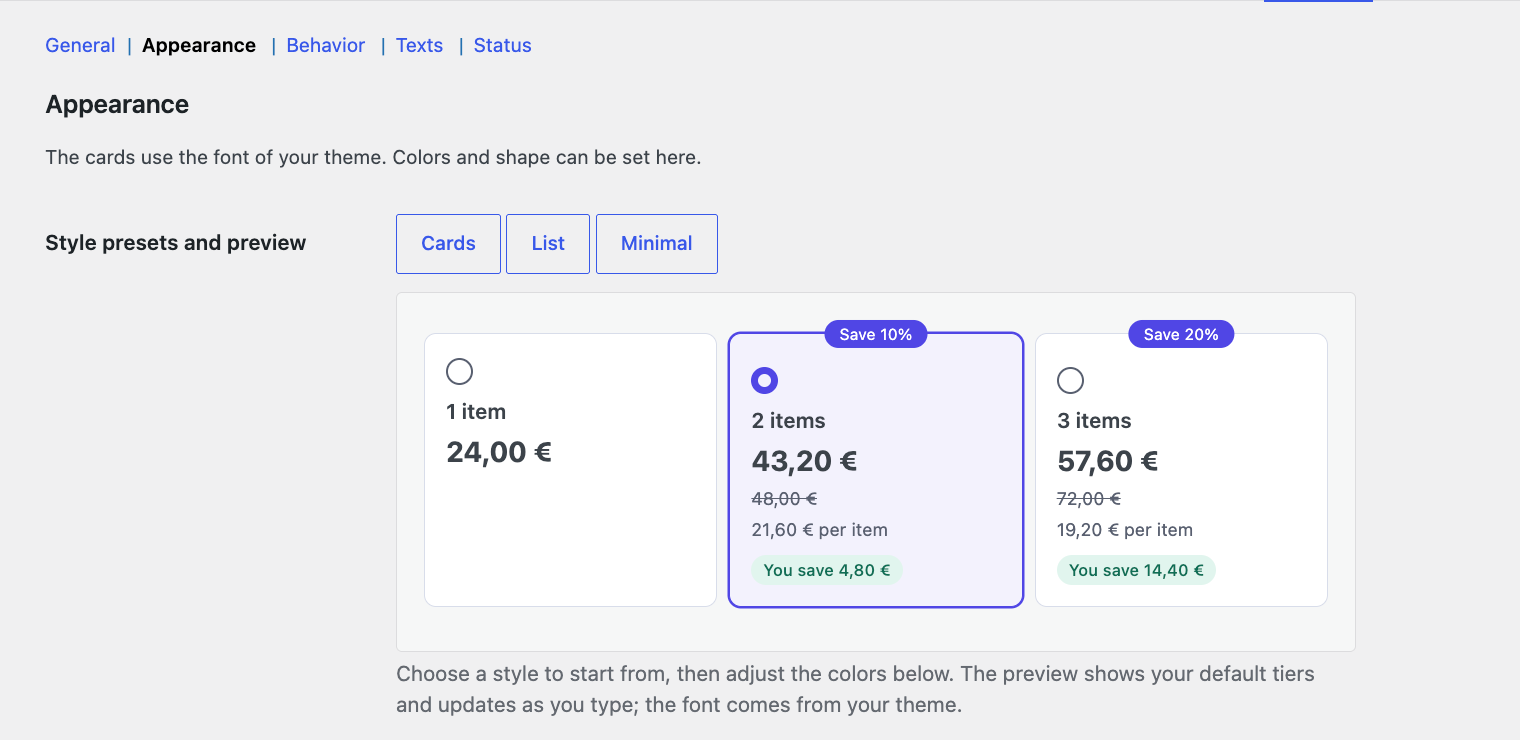
Global tiers are reusable defaults. Saving them does not automatically enable bundles across the whole catalogue.
Enable an offer on a product
- Open an existing simple or variable product in Products.
- Find the BundleTiers tab in the Product data panel.
- Tick Enable bundles.
- Choose Global tiers to reuse the default offer, or Custom tiers for this product to configure a different one.
- Update the product and open its public product page.
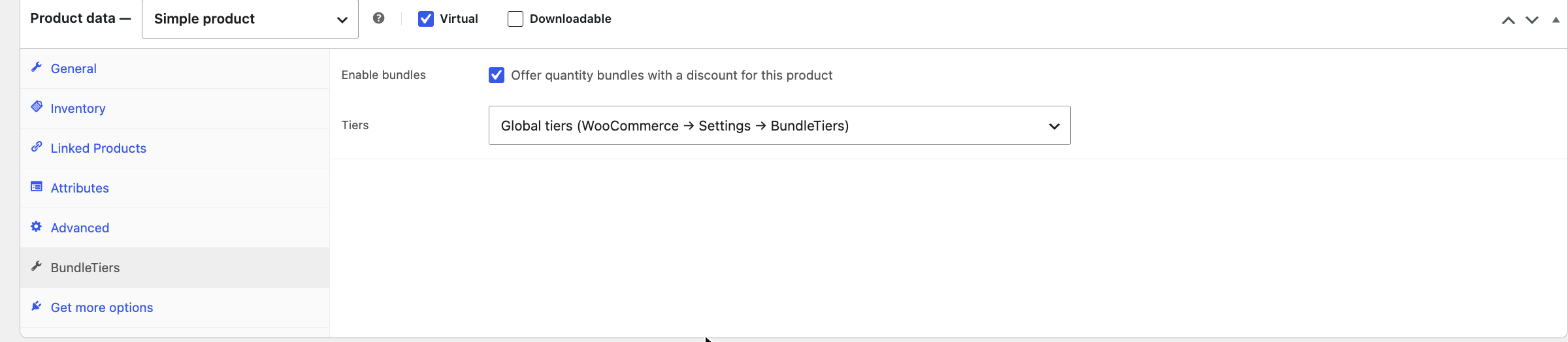
Custom tiers are useful when products have different unit prices or margins. For example, a notebook can use a fixed pack price while a mug uses a percentage offer.
Check the product and cart
- Select each quantity card and check the displayed total, unit price and saving.
- Add the offer to the cart and compare it with the product-page total.
- Change the cart quantity. Confirm that the discount follows the new quantity.
- Remove items and verify that the lower tier or standard price is restored when appropriate.
- Check sale prices, coupon settings, stock availability and any quantity restrictions used by your store.
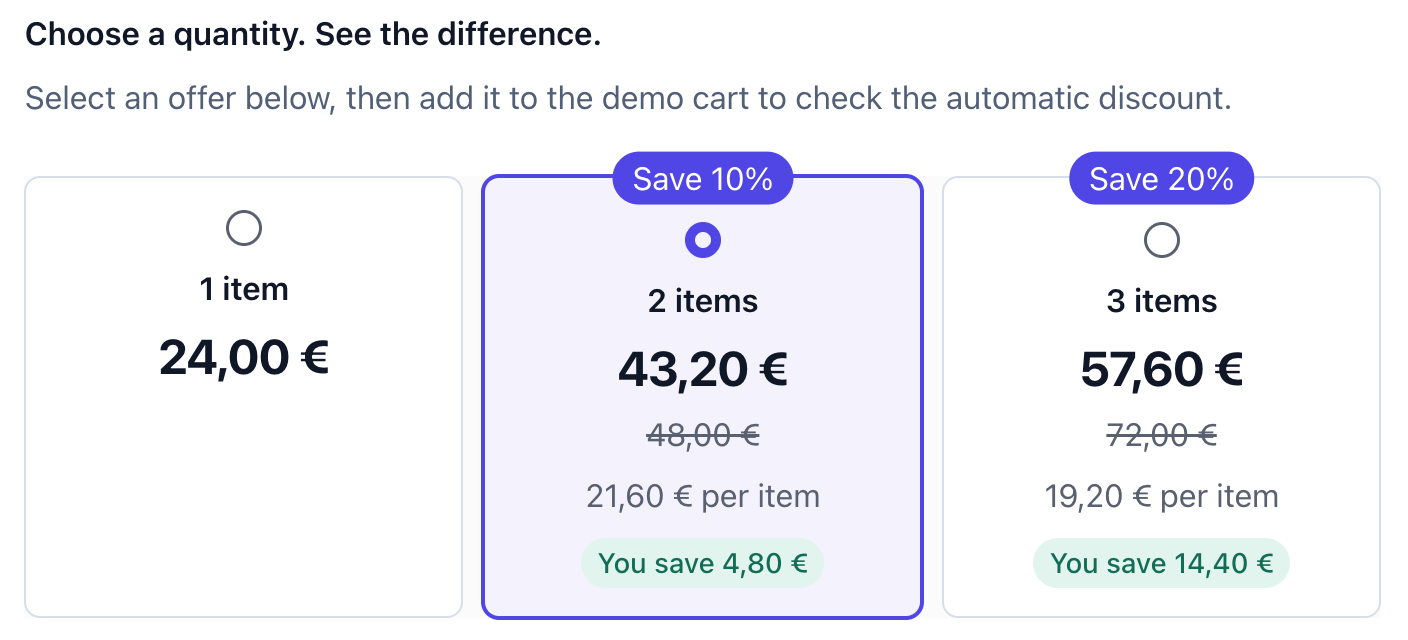
Our live mug demo lets you test the selector and cart. Its checkout is intentionally disabled, so there is no purchase or payment.
Use tiers with variable products
Enable BundleTiers on the variable parent product. With variation counting enabled, add different variations to the cart and check their shared quantity.
For example, one size S and two size M T-shirts make three items of the same product. A three-item tier can apply to both cart lines. Products with different parent IDs do not count together.
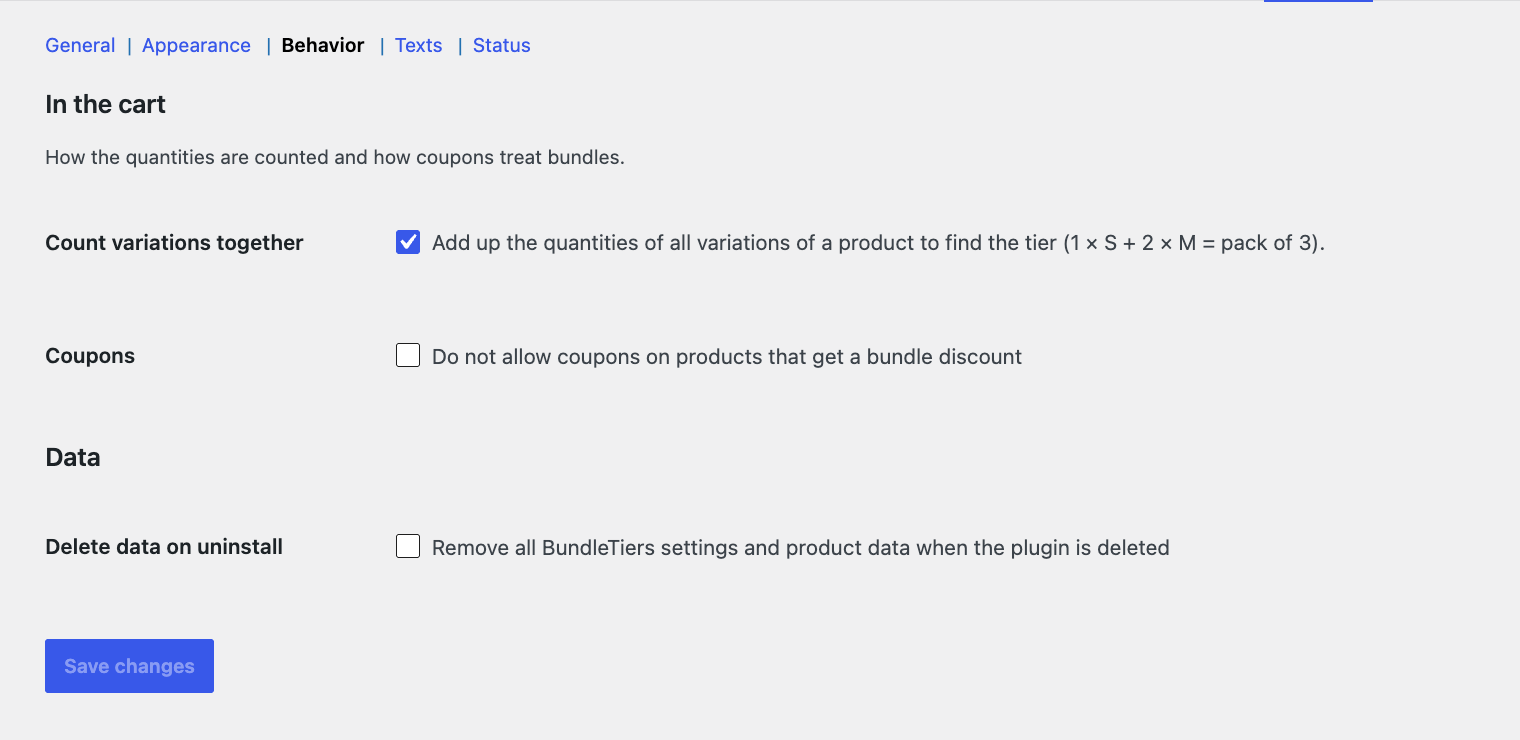
Try the variable-product demo to see the behaviour. Choose a size before adding the product.
If the selector does not appear
- Confirm that WooCommerce and BundleTiers are active.
- Check that the product is simple or variable.
- Make sure Enable bundles is checked, and save the product.
- Check whether the product uses global or custom tiers.
- Clear applicable page caches after changing settings.
- Check theme or extension conflicts on staging before making changes to a live shop.
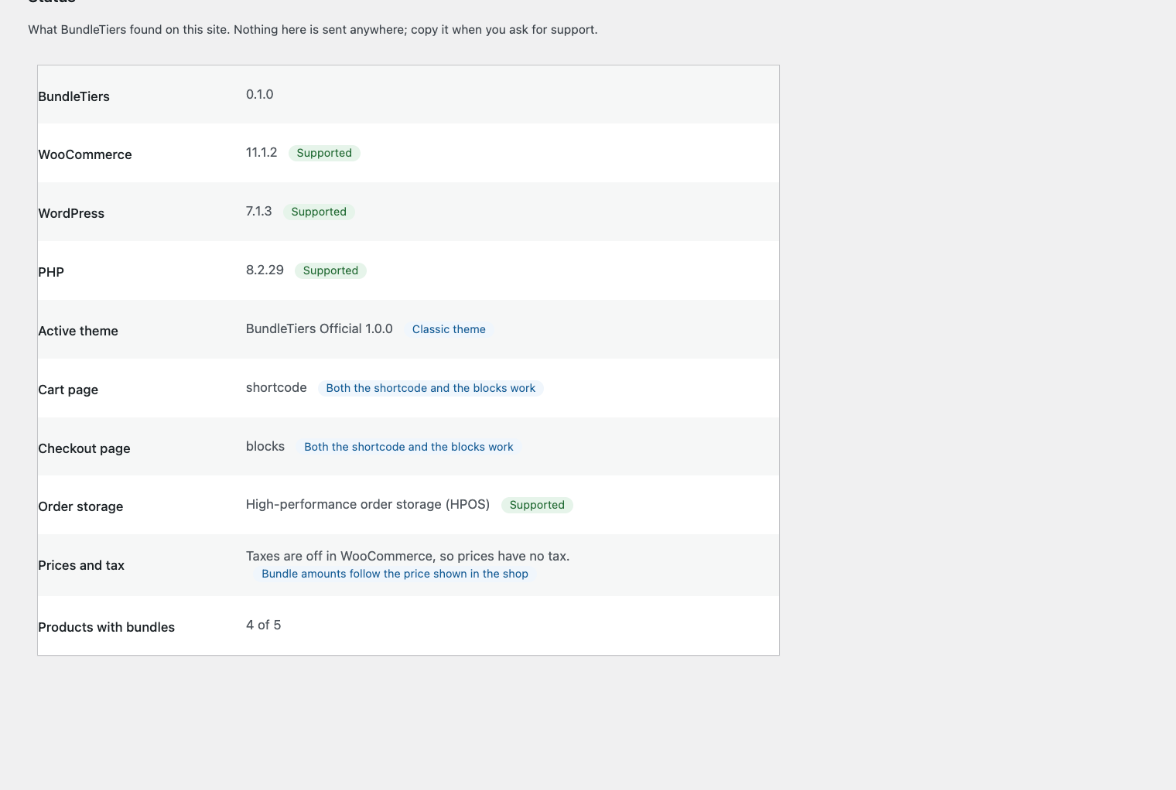
For a reproducible issue, use GitHub Issues. Include your WordPress, WooCommerce and BundleTiers versions, the product type and the steps that reproduce the problem. Remove customer data and credentials.
Ready for your first offer?
Download the plugin or explore its capabilities before installing.